Computing Interest Using A Console Application and MFC
PART 1) of the assignment will compute
interest using the console application, and PART 2) will create a graphic user
interface (GUI) for the same problem.
1)
Write
a program that helps an investor compute information
about a given savings account.
a)
Given
an initial balance, P, an interest rate, r,
and the number of years that the money is invested, t,
compute the total value of the account if the interest is compounded
continuously. (As a reminder, the total
value after t years is:  . You can approximate e
by declaring a constant double and setting it equal to 2.718281828459045)
. You can approximate e
by declaring a constant double and setting it equal to 2.718281828459045)
Have
the main program prompt the user to input the variables, and call a
value-returning function computeTotal
that returns the final total
value.
b)
There
are four variables in the
equation above  : total, P, r, and t.
Allow the user to put in ANY of the three variables, and compute and
output the fourth. For example, the user might input a starting amount (P),
ending amount (total) and years (t), and the program would output the
interest rate(r) necessary to achieve that final amount.
: total, P, r, and t.
Allow the user to put in ANY of the three variables, and compute and
output the fourth. For example, the user might input a starting amount (P),
ending amount (total) and years (t), and the program would output the
interest rate(r) necessary to achieve that final amount.
One
way of doing this (a very simple way) would be to instruct the user to enter 0 (ZERO)
for the variable that is unknown. A more
elegant approach would use a menu to allow the user to choose which variable
would be unknown. Feel free to be
creative in your approach.
c)
EXTRA
CREDIT: Allow the user to choose one of
two options: compounded continuously (as
above) or compounded monthly. ( total
=  )
)
2)
Much
of the user friendly software we see today has a graphical user interface (GUI, pronounced
gooey). This is the windows desktop that
we have become familiar with. If we supply
a GUI, users can click on buttons and enter text into boxes for input. The steps below will help you to write your
first GUI.
a)
Start
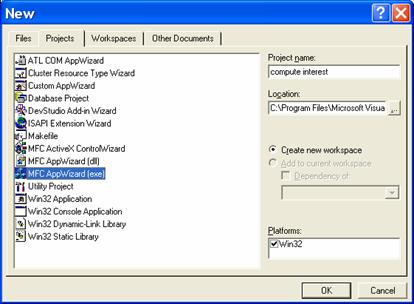
Visual C++, open a new project of type MFC Appwizard(exe) giving it a name . Below, it is called compute interest
b)
Choose
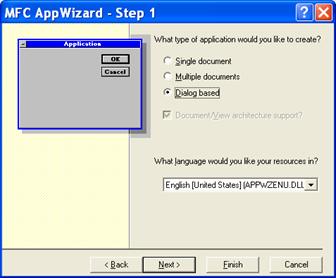
Dialog Based as the type of application that you wish to create.
c)
You
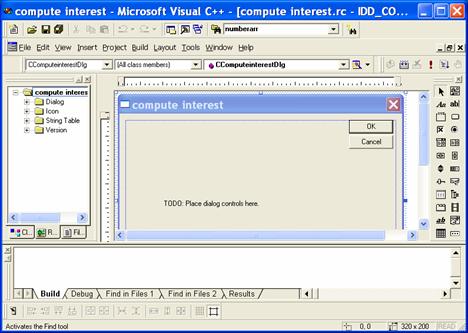
may accept the default values for the next few windows, or simply press Finish and OK. Your screen will then
look as follows:
d)
You
may link and run your program. When you
run your program, a dialog box opens with two buttons (OK, and Cancel). There is also text
showing where dialog controls may be placed.
Click either OK or Cancel
to continue writing your program.
In
the screen shot above, notice the workspace window on the left. The workspace
window has three tabs at the bottom. If
you click on the middle tab, Resources,
and open the Dialog folder, you will see the dialog box that you are currently
working on. You can always double click
it to get back to work.
e)
Select
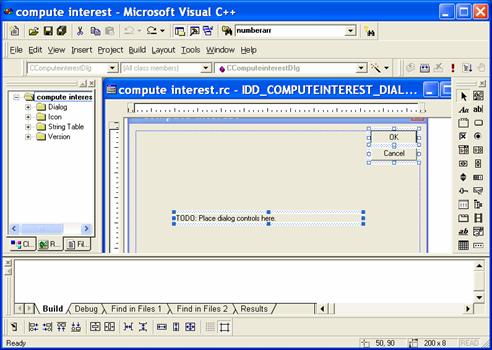
the OK, and Cancel buttons, and the TODO line and hit
the delete key to remove them, so that your dialog box is now clear. (Hold the
control key while selecting to select them all at the same time).
f)
You
can see the control menu in the right hand side of the screen shot above. Looking at part a) of the problem as described for the console application in Part 1) above, we wish to create input
boxes for our three unknown variables in the interest computation program. This
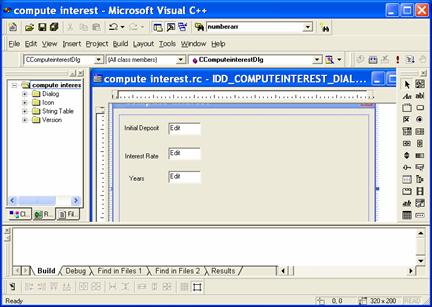
will allow the user to enter values. Drag three static text boxes (Aa), and three
edit boxes (ab|) onto the dialog screen. Right click on each of the static text boxes,
go to Properties and type a
more meaningful name into the Caption
box. Since these are static, you do not
have to change the ID.
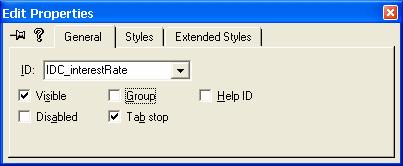
For
each of the edit boxes, right click, go to properties and change the ID to
something meaningful.
g)
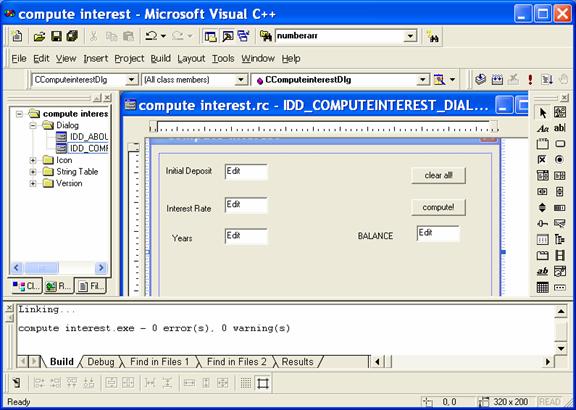
 Place another static text box, and edit box
for the output variable, changing the caption of the static text box as above,
and the ID of the edit box as above. Then drag two buttons from the control window
Place another static text box, and edit box
for the output variable, changing the caption of the static text box as above,
and the ID of the edit box as above. Then drag two buttons from the control window
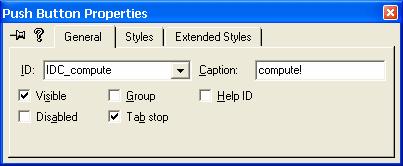
Right
click on each button, changing one caption to compute and one to clear. For
these buttons, you should also change the ID to something more meaningful.
The
compute button will be used to
calculate the final result, and the clear
button will be used to clear all input values.
h)
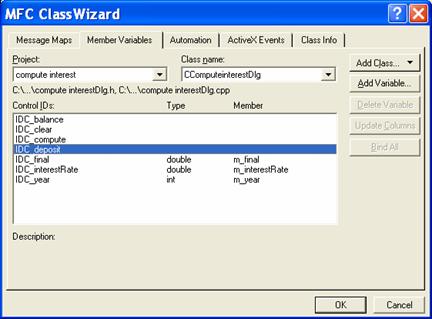
Go to View/Class
Wizard from the menu or right
click anywhere in the dialog window and choose Class Wizard. Click
on the members variable tab.
i)
We
wish to create variables that are connected to the edit boxes (i.e. information
entered in the edit box will go directly into these variables). Select (one at
a time) each edit box that you created in this list, and click on the Add
Variable on the side. Type in a name for each of the variables, leave the Category as is,
and change the type of the variable from CString to double. 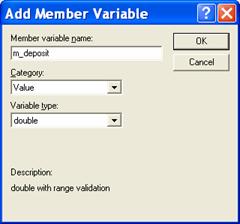
Click
OK.
j)
When a
user clicks the clear button, we wish to have all edit boxes cleared. Double click on the clear button, and a
pop-up window named Add
k)
Double
click on the clear button to go to the source code. Type the following lines into the existing
function shell, so that your code looks like that below. (MAKE SURE THE YOU USE
THE VARIABLE NAMES THAT YOU USED WHEN CREATING THE MEMBER VARIABLES).
void CComputeinterestDlg::Onclear()
{
// TODO: Add your control notification
handler code here
UpdateData(TRUE); // put values from
the edit boxes into the
// variables
m_year = 0;
m_final = 0;
m_interestRate = 0;
m_deposit = 0;
UpdateData(FALSE); // put values from
the variables into the
//edit boxes
}
The
UpdateData() statements are explained in the comments
above. Compile and run your program. Type values into the edit boxes, and then click the clear
button to test your code. All edit boxes
should become 0.
l)
Double
click the compute button to create a member function. Double click again to get the
location to place your source
code for the interest calculation. You wish the calculation to be performed each
time the user clicks on the compute button. Modify your code from Part
I of this assignment to use the user’s input to set the value of the edit
box that has not been filled in. Hint: First write the code that allows the user to
place the starting amount, interest rate and years and have your program fill
in the final balance. Then change your code so that the user can input ANY of
the three variables, and have the fourth computed.
NOTE: TO CALCULATE THE ABOVE YOU SHOULD HAVE e
DECLARED AS A constant double, AND YOU MUST #include <cmath>.
BOTH THESE LINES CAN BE PLACED AT THE BEGINNING OF THE MAIN HEADER FILE
OF YOUR APPLIATION (LOOK UNDERTHE FILES TAB OF THE WORKSPACE WINDOW AND CHOOSE
THE HEADER FILE WITH THE NAME OF YOUR APPLICATION). THE BEGINNING OF THE CODE,
WITH THESE TWO LINES ADDED CAN BE:
//
compute interest.h : main header file for the COMPUTE INTEREST application
//
#include
<cmath>
const
double e = 2.718281828;
m)
EXTRA
CREDIT: Allow the user to choose one of
two options: compounded continuously (as
above) or compounded monthly. ( total = ). You can do this
with a few more buttons as above, or explore the help files to use radio
buttons.